MCP, short for Model Context Protocol, is a shared standard that lets AI applications connect to outside tools and data consistently. The official MCP site calls it an open-source standard for connecting AI applications to external systems. Think of it as an agreed plug shape. If an assistant and a tool both speak MCP, they can be joined without a special one-off link. Below are the idea in plain English, an everyday analogy, what can go wrong and a checklist for before you connect anything. No technical background is needed.
The short answer: a common plug for AI tools
Without a standard, every pairing of assistant and tool would need its own custom work. An assistant that reaches your calendar needs one connection, your documents another and your database a third. Each assistant would need them all again. A standard lets a tool offer itself once and be usable by many assistants.
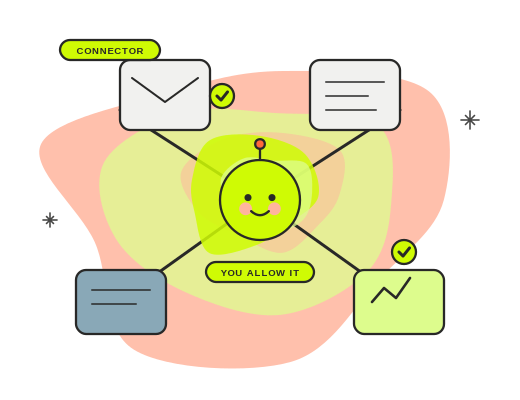
The MCP introduction page says AI applications such as Claude or ChatGPT can connect to data sources, such as local files and databases. They can also reach tools, such as search engines and calculators, and workflows, such as specialised prompts. That is what lets them look things up and perform tasks, instead of only chatting.
An everyday analogy: the USB-C socket
The official introduction uses a helpful comparison: MCP is like a USB-C port for AI applications. Just as USB-C is one standard way to connect many devices, MCP is one standard way for AI applications to connect to many systems.
Here is a second picture that is easy to remember. Imagine an office with a reception desk. Visitors (the AI assistant) do not wander the building. They ask reception for what they need. Reception follows a fixed procedure to fetch it from the right department (the tool or data source). The procedure is the standard. It makes things efficient, but it does not decide whether a visitor should be allowed into the finance office. That decision still belongs to people and settings.
The three parts, in beginner terms
- The AI application: the app you talk to, which wants to use something outside itself.
- The MCP server: a small service that offers a tool or some data to the AI application in the agreed format. It may run on your own computer or be hosted by someone else.
- The thing behind it: your files, a database, a calendar, a design file or another app.
In products you use, this often appears as a connector. Anthropic's help pages use the term "connectors" for these links, and describe custom connectors that use remote MCP. You may never see the word MCP on screen. It is simply the standard underneath.
What can go wrong
A standard makes connections easier, and easier connections need more care, not less. MCP's security best practices page is written mainly for developers and operators. It still names risks worth understanding in plain terms:
- Untrusted or malicious servers. A server you did not choose carefully can behave badly. The page discusses local servers that run on your machine. It warns they can have direct access to your system, so clients should ask for consent and ideally restrict what they can reach.
- Too much access. The page describes scope minimisation: asking for broad permissions up front makes any compromise worse. For you, the lesson is to grant the narrowest access that does the job.
- Confused deputy and token problems. These are technical attacks in which a connection is tricked into acting with permissions it should not use. You cannot fix them yourself. They are a reason to prefer well-known providers and to review what you have connected.
- Hidden instructions. Anthropic's help page warns that malicious servers may hide prompt injections, meaning text crafted to steer the assistant. Watch what the assistant proposes to do, and be suspicious if it suddenly wants to do something you did not ask for.
None of this means connections are a bad idea. It means they are like giving someone a key. You would decide who gets which key, and you would not hand over the master key for a small errand.
A checklist before you connect anything
- Do I really need this? Could I paste a short, non-sensitive excerpt instead?
- Who runs it? Is it from a provider I recognise, or a stranger's server?
- Is my employer's approval needed? If you use AI at work, check your policy first.
- Read or write? Does it only look, or can it create, change or delete things?
- How wide is the reach? Can I limit it to one folder, one project or one calendar?
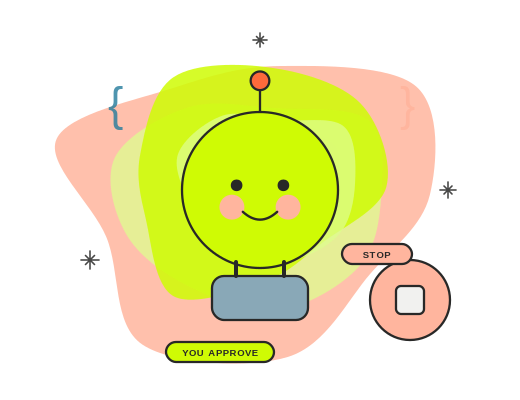
- Will it ask me before it acts? Prefer settings that ask for approval on anything that changes data.
- Can I switch it off? Know where the off switch is before you turn it on.
- Have I tried it with made-up data first?
A worked example
Suppose a colleague suggests a tool that connects Claude to a shared spreadsheet of supplier prices. Run the checklist. You do not need the entire drive, so you ask for access to a single practice copy. The provider is recognised, and your manager confirms the tool is approved. The connector can read and edit, so you use it read-only if possible, or keep a backup of the sheet. You test with a copy that contains invented suppliers called "Example Tea Company" and "Sample Biscuit Ltd". It works, the assistant asks before making changes, and you know you can remove the connection later from your settings. Only then do you consider using real data, and only if your employer has approved that exact tool.
Good to know
If a connection feels too powerful for the task, it probably is. Start with the smallest version, such as read-only access to a single practice folder.
Safety paragraph: what you must not put in
Never type real customer, patient, bank, account, card, ID, password or other personal or confidential information into an AI tool unless your employer has approved that exact tool. Connections do not change that rule. They can make it easier to break by accident, because a connected tool can pull in material you did not paste yourself. Use made-up or anonymised examples while learning, and check where the connected data actually lives before you switch anything on.
Official pages to check
- modelcontextprotocol.io, "What is the Model Context Protocol (MCP)?" (the introduction).
- modelcontextprotocol.io, "Security Best Practices" (risks and mitigations).
- support.claude.com, "Use connectors to extend Claude's capabilities" and "Get started with custom connectors using remote MCP".
The standard and products built on it keep changing, so read the current versions of those pages before relying on any detail here. Our connectors course shows how to apply this checklist to real tools using safe practice examples.
Common questions
What does MCP stand for?
MCP stands for Model Context Protocol. The official site describes it as an open-source standard for connecting AI applications to external systems such as data sources, tools and workflows.
Do I need to understand MCP to use connectors?
No. You can use connectors from a menu without knowing the technical detail. Knowing the basic idea helps you ask better safety questions, such as what a connection can see and what it can change.
Is MCP safe?
MCP is a standard, not a guarantee. The official security page lists real risks and the steps developers should take, and the safety of any connection also depends on who runs the server and what permissions you grant. Connect only services you trust.
Official pages to check
AI tools change quickly. Check the vendor's current help page before you act, and review anything an AI tool produces before you rely on it.