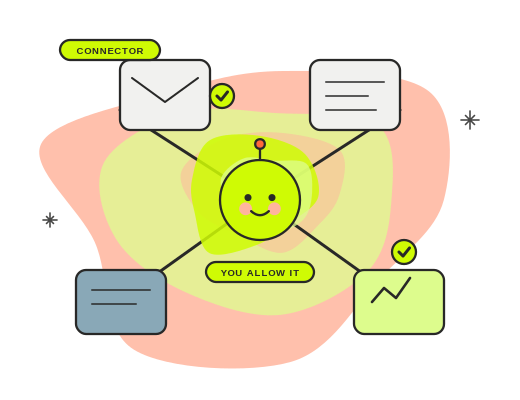
A connector lets Claude look at, and sometimes act in, an app you already use, such as a document store or calendar. To add one, open the connector directory in Claude, pick a service, choose "Connect" or "Install" and complete its sign-in prompts. Afterwards you switch it on for the conversations where you want it. Below are those steps, using the labels Anthropic's help pages give, plus what permissions mean and how to turn a connector off. Menus and plans change, so treat the official pages at the end as the final word.
What a connector actually is
On its own, an AI assistant only knows what you type or paste into the chat. A connector gives it a controlled way to reach something outside the chat. Anthropic's help page describes connectors as letting Claude reach your apps and services, retrieve your data and take actions in them. The same page says Claude inherits each person's permissions from the connected service. In plain terms, if you cannot open a folder in the other app, Claude cannot open it for you either.
That is useful and it also deserves care. A connected assistant is no longer just reading what you paste. It may be reading real files, and depending on the connector it may be able to create or change things. The rest of this article is about doing that on purpose and with limits.
The steps to add a connector from the directory
Anthropic's help page gives two ways to reach the directory. From a chat, click the "+" button in the lower left (or type "/"). Hover over "Connectors", choose "Manage connectors", then click the "+" next to "Connectors". From settings, go to "Customize" and then "Connectors". Once you are in the directory, the page lists these steps:
- Click the connector you want.
- Read its description and capabilities.
- Click "Connect" or "Install".
- Complete the authentication prompts from the other service.
- Adjust any settings or permissions it offers.
On a Team or Enterprise plan, the help page says an Owner or Primary Owner must enable the connector for the organisation first. Look under "Organization settings" and then "Connectors". Enabling it gives no one access by itself, because each person still signs in individually. If you cannot add connectors yourself, the page describes a "Request" button that an Owner can approve or decline.
Using a connector in a conversation
Connecting a service does not mean it is used everywhere. The help page says to open the "+" menu, hover over "Connectors" and toggle on the services you want for that conversation. There is also a "Tool access" setting under the same menu. The page says "Auto" is the default and suggests considering "On demand" if you have ten or more connectors active. Keeping fewer switched on is a good habit anyway, because every connector is one more thing the assistant can touch.
Adding a custom connector, and why to be careful
Beyond the directory, Anthropic's pages describe custom connectors that use remote MCP. MCP is a standard way for assistants to talk to tools (our article on MCP explains it). For Pro and Max plans the help page gives this path: "Customize", then "Connectors", then "+ Add", then "Add custom connector". You enter a name and the server address, review the detected sign-in settings, choose how authentication works, and click "Add".
The caution on that page is the important part. Custom connectors are not verified by Anthropic. Connect only to servers you trust, review the permissions requested at sign-in and deny any that seem unnecessary. The page also warns that malicious servers may hide instructions in what they return. It adds that connector tools can read, create, modify or delete data in connected apps. If you work for an organisation, ask your IT or security team before adding any custom connector.
Permissions you should understand before you click
- Read or write: can the connector only look things up, or can it also change things? Check the description and the permission screen.
- Reach: which folders, mailboxes or calendars does it cover, and can you narrow that in the other service?
- Approval: the help page says you can ask Claude to check with you before each use of a connector tool. It warns to click "Allow always" only for tools you trust to run unsupervised.
- Shared credentials: on Team and Enterprise plans, the page notes that a connector using a shared key gives every user that key's access. Limit the key to what members should reach.
On Team and Enterprise plans, Owners can set tools to "Always allow", "Needs approval" or "Blocked", and users cannot override that. Work within any rules your organisation sets.
A worked example with made-up data
Imagine you want Claude to help you tidy meeting notes. Rather than connecting your whole file store, first create a practice folder with two invented documents, such as a fake agenda for "Example Tea Company" and a made-up action list. You would connect the file connector, read its permission screen and switch it on for one conversation. Then ask Claude to summarise only that folder. Next, check the summary against the documents and toggle the connector off. Remove it if you will not use it again. Nothing real was exposed, and you learned how the steps feel.
How to turn a connector off or remove it
- For one conversation: open the "+" menu, hover over "Connectors" and toggle the service off.
- To switch off single tools: the custom connectors help page describes a "Search and tools" menu for turning off individual tools.
- To remove it: go to "Customize", then "Connectors", and click "Remove" or use the three dots next to the connector. Follow the prompts.
- To cut off access completely: the page says you can disconnect in Claude's settings or in the other service's own security settings.
Anthropic's page also advises disconnecting services you no longer use.
Safety: what never to connect or type
Never type real customer, patient, bank, account, card, ID, password or other personal or confidential information into an AI tool unless your employer has approved that exact tool. The same goes for connecting a tool to a place where that kind of information lives. Use made-up or anonymised examples while you practise. If you are unsure whether a tool is approved, ask before you connect it, not after.
Official pages to check
- support.claude.com, "Use connectors to extend Claude's capabilities" (the directory, permissions and safety notes).
- support.claude.com, "Get started with custom connectors using remote MCP" (custom connectors and removing them).
- modelcontextprotocol.io, the introduction and security best practices pages, for background on the standard.
These pages change as products change, so confirm current menu names and plan rules there before you act. Our connectors lessons give guided practice with safe examples.
Common questions
Can Claude see everything in an app once I connect it?
Anthropic's help page says Claude inherits your permissions in the connected service, so it cannot reach files, channels or records you cannot reach yourself. It can still reach everything you can, so connect only what you need and check what each connector is allowed to do.
Do I need an administrator to add a connector?
It depends on your plan. On Team and Enterprise plans, the help pages say an Owner or Primary Owner must enable a connector for the organisation first, and then each person signs in individually. Check the current help page for your plan.
How do I stop a connector I no longer use?
Open Customize, then Connectors, and use the Remove option or the three dots next to the connector. You can also turn a connector off for a single conversation from the plus menu. The help page also says you can revoke access in the other service's own security settings.
Official pages to check
AI tools change quickly. Check the vendor's current help page before you act, and review anything an AI tool produces before you rely on it.