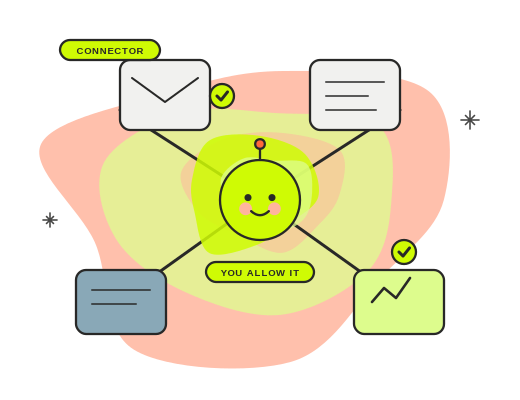
A connector lets an AI assistant reach something outside the chat window, such as your documents, calendar, email or another app. Without one, the assistant knows only what you type or paste. With one, it can look things up and, if you allow it, take actions. MCP is a common standard that many connectors use, and the main thing to know about any connector is what it can read and what it can change.
What a connector does in practice
Imagine asking an assistant, "What is on my calendar on Thursday and which of those meetings have no agenda?" Without a connector, you would have to copy your calendar into the chat. With a calendar connector, the assistant fetches it, answers and, depending on how the connector is set up, could even propose changes.
The same idea applies to shared drives, project trackers, chat tools and customer systems. The connector is the bridge, and the permissions you grant decide how far across it the assistant can go.
What MCP is
MCP stands for Model Context Protocol. It is an open standard for describing how an assistant talks to a tool or data source. Because the format is shared, a tool builder can write one connection that works with several assistants, instead of a separate version for each. You will see the term in product documentation and in IT discussions. You do not need the technical details to use connectors well, but you do need to know that a standard format does not make a connection safe by itself. Safety depends on what the particular connector is allowed to do and who built it.
Read access versus write access
This is the most important distinction. A read-only connector can look at information. A connector with write access can create, edit, send or delete things. A mistaken summary is annoying. A mistaken email sent to a client, or a deleted file, is a different matter. Where you have a choice, start with read-only.
What to check each time: a short list
- Does your organisation allow this connector, and has IT or security reviewed it?
- Is it read-only, or can it change, send or delete things?
- Which folders, inboxes, calendars or workspaces can it reach, and can you narrow that?
- Whose permissions does it use? If it acts as you, it can see whatever you can see.
- Can you switch it off or remove it later, and who can see what it did?
- Will you review anything it drafts, sends or changes before it takes effect?
A worked example: from broad to narrow
Before: a team lead wants an assistant to help prepare for client meetings. They connect it to their whole shared drive, email and calendar, with the ability to send messages. A week later, the assistant answers a question using a draft pricing file that was never meant to be seen outside finance, because the lead's account could technically open it.
After: the lead removes the broad connection and sets up read-only access to a single folder of client briefing notes and to the calendar. Anything the assistant drafts as an email is saved as a draft for the lead to read and send personally. The assistant is less impressive in a demo and much easier to trust.
Two risks to understand
First, over-sharing. A connector can expose more than you intended, since the assistant sees what the connection allows, not what you meant it to see. Second, untrusted content. A document, email or web page that the assistant reads might contain instructions written to steer it. Assistants and products vary in how well they handle this, so treat unexpected behaviour after reading outside content as a reason to stop and check.
Start small and widen slowly
- Begin with one low-risk source and one clear task.
- Read the connector's own documentation to see what permissions it requests.
- Review what it did, not just what it said, for the first few uses.
- Add more sources only when you have a specific reason, and remove any you stop using.
Questions to ask your IT team
If you are not sure how a connector behaves, ask IT three plain questions. Where does the data go when the assistant reads it? Is activity logged so someone can see what was accessed? Can access be limited to certain people or groups? Good answers are specific. A vague answer is a sign to wait.
Good to know
If a connector asks for permissions that seem broader than the job needs, ask whether a narrower option exists before you accept.
Available connectors, names, screens and permission options differ by plan, tool and version and change often, so rely on the vendor's current documentation and your organisation's rules. Do not connect systems that hold confidential or personal data unless your organisation has approved the use. The course below explains connectors and MCP with safe practice tasks.
Common questions
What is MCP in AI?
MCP stands for Model Context Protocol, an open standard that describes how an AI assistant connects to an outside tool or data source. It works a bit like a common plug shape, so one kind of connection can work with many tools.
Is it safe to connect an AI assistant to my email or files?
It can be reasonable if your organisation allows it and you limit what the connection can reach, but it adds risk because the assistant can see more. Start with read-only access to a small area and review anything it drafts or changes.
Do I need to be technical to use connectors?
Often not, because many are switched on from a settings screen. You do need to understand what each connector can read and change, and that is a question for the tool's documentation and your IT team.
Official pages to check
AI tools change quickly. Check the vendor's current help page before you act, and review anything an AI tool produces before you rely on it.